

Archived article, originally published 2015-02-04. It reflects information at that time; products, prices, offers, availability and guidance may have changed. Contact Lesar for current advice.
.png?mode=h)
.jpg?mode=h)
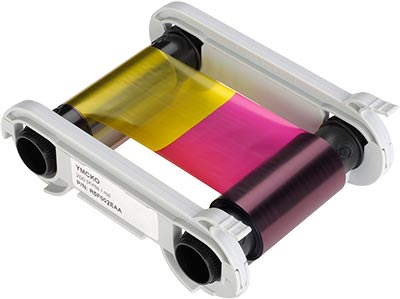
Evolis provide a variety of printer ribbons which enable you to produce colourful yet professional identification cards for your staff, students, visitors, contractors and more. To find out which ribbon would be compatible with your plastic id card printer please use our consumable finder. Once you’ve found your ribbons proceed to the following steps.
Step one
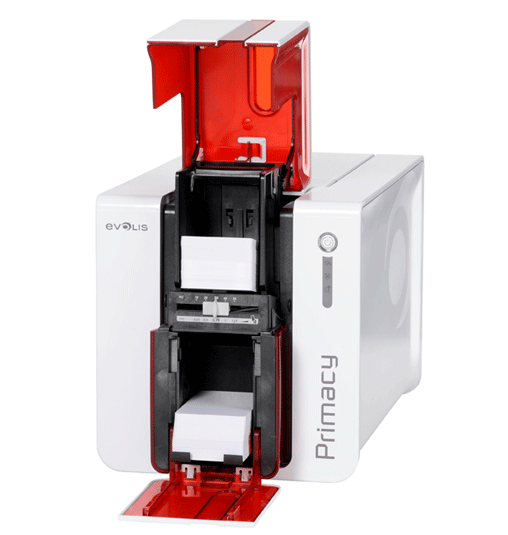
Press down firmly on the cover until you hear a click, the cover will open.
Step two
Take your ribbon out of the packaging and hold it with the correct side up (the ribbon will have ‘this side up' engraved onto the side of the ribbon) then place the ribbon into the printer
Step three
When the ribbon is firmly in place, press the cover down until you hear a click to ensure it is securely fastened.
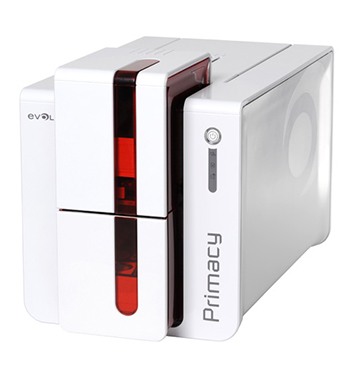
The Evolis Primacy card printer has a clever feature which automatically detects the ribbon when inserted, simply place your ribbon into the printer and you’re ready to print!
For more information on the Evolis Primacy, view our product page or contact our team on 0333 7000 123 alternatively email [email protected]
